Managing Employee Roles
Control what each employee can do in PerksPe by assigning or removing roles.
What are Roles?
Roles define permissions and access levels. Common roles include:
| Role | Can do |
|---|---|
| Employee | View and redeem their own perks |
| Manager | View team perks, approve requests |
| Admin | Full access to all settings and employees |
View Employee's Current Roles
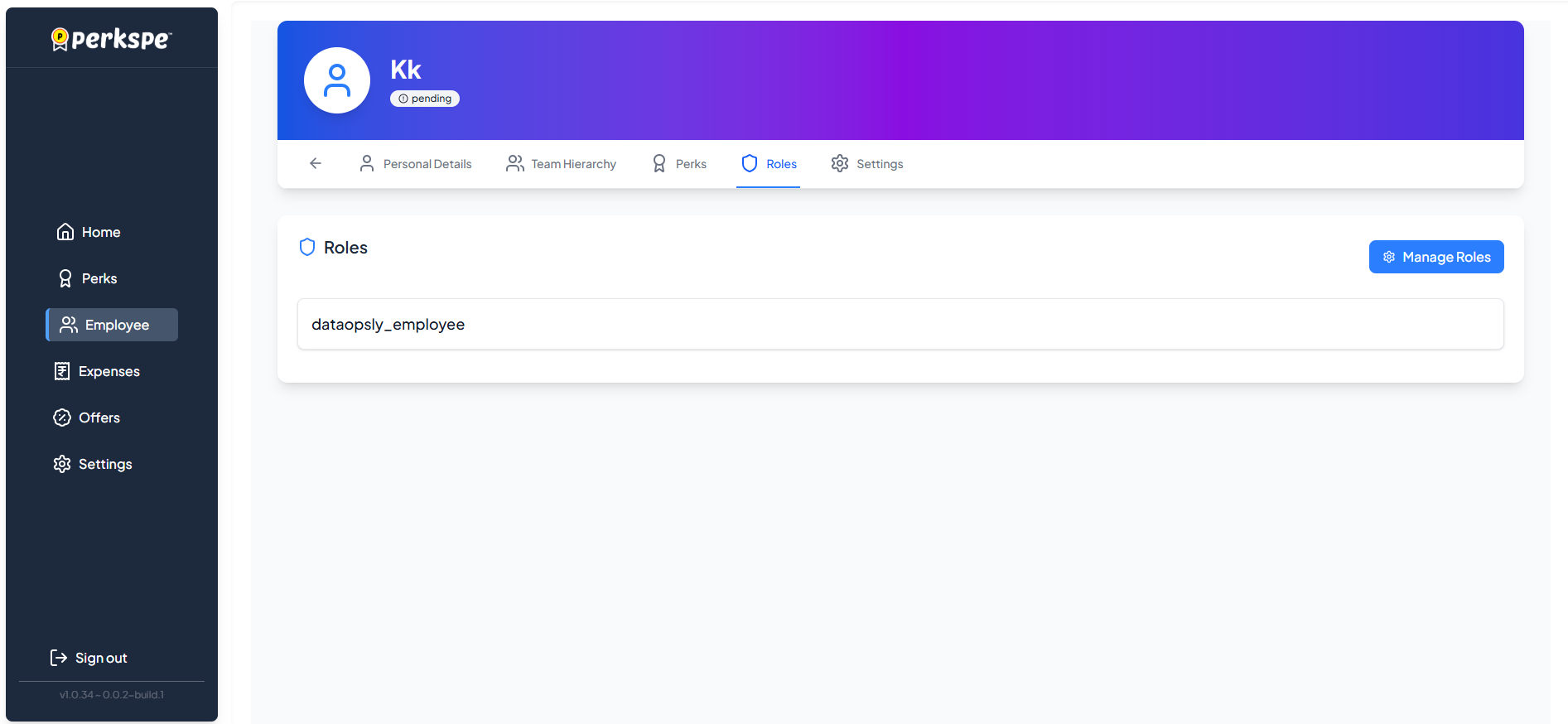
Step 1: Select an Employee
From the Employees list, click on an employee.
Step 2: Go to Roles Tab
Click the Roles tab to see their current roles.
Assign or Remove Roles
Step 1: Click Manage Roles
Click the Manage Roles button.

Step 2: View Available Roles
A popup shows all roles in your organization.
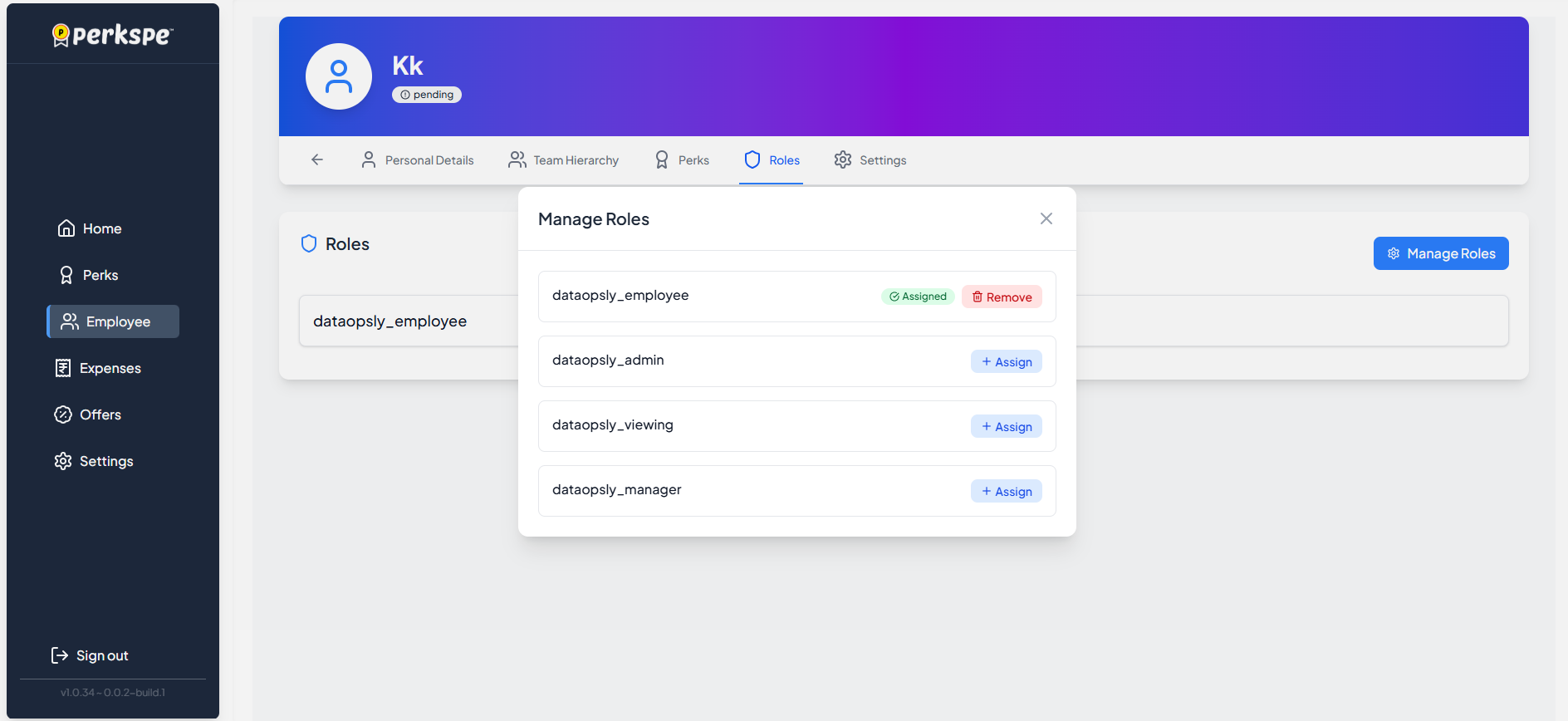
Step 3: Make Changes
To assign a new role:
- Check the role you want to add
- Click Save
To remove a role:
- Uncheck the currently assigned role
- Click Save
Quick Summary
| Task | How to do it |
|---|---|
| View employee's roles | Employees → Select employee → Roles tab |
| Assign new role | Roles tab → Manage Roles → Check role → Save |
| Remove role | Roles tab → Manage Roles → Uncheck role → Save |
note
Be careful when assigning Admin roles — they have full access to your organization's PerksPe account.